
What is a GEDCOM file?
Learn what a GEDCOM file contains, why photos can go missing and how to move or share your family tree safely.
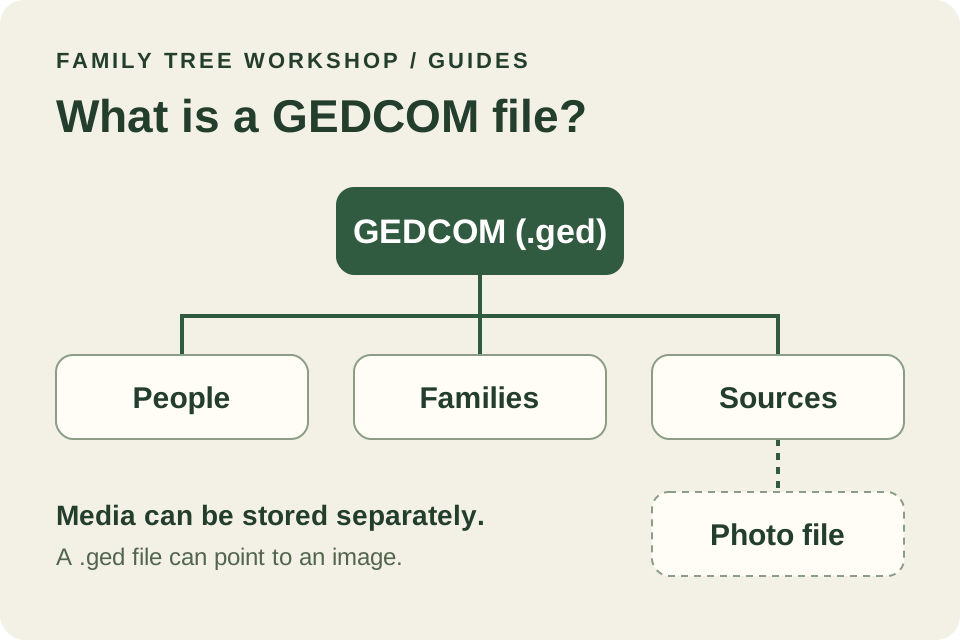
A GEDCOM file is a structured text file, usually ending in .ged, that lets you move a family tree between genealogy programs or share it with a relative. It can contain people, relationships, dates, places, notes and sources. A plain .ged file can reference photographs without containing the images themselves.
Why genealogists use GEDCOM
GEDCOM stands for Genealogical Data Communication. FamilySearch maintains the standard so that different genealogy programs can exchange family history records. You can use it when changing software, sending a branch of your tree to a cousin or keeping a portable copy of your research. About FamilySearch GEDCOM
A GEDCOM is a snapshot of the records you export. If you correct a date in your original tree, your cousin’s copy will still show the earlier date until you share the correction. Keep a backup in your original program’s own format too, where available. It may preserve application-specific information that the GEDCOM export leaves out.
How GEDCOM links people, families and sources
Numbers at the start of each line show how the information fits together. A level-zero line starts a record, and higher levels add details beneath it. Tags identify what each line represents.
0 @I1@ INDI
1 FAMC @F1@
0 @F1@ FAM
1 CHIL @I1@
In this example, INDI starts a person record with the identifier @I1@, and FAM starts a family record. The person’s FAMC line points to their parent family. The family’s CHIL line points back to that person as a child. FAMS can link a person to a family in which they are recorded as a partner or parent.
Source citations use links too. A citation can point to a SOUR record and use PAGE to locate the evidence, such as a page in a register. In the file header, SOUR has a different meaning and identifies the exporting system. FamilySearch GEDCOM 7 specification
What might change during a transfer?
The receiving program decides which fields it can read and how to display them. Check custom fields, note formatting and citation details. For example, a program may store several citation details together, while the next program expects them in separate fields.
A plain .ged file can hold a reference to an image on your computer. Your relative’s program may be unable to find it, so transfer the media separately using a method their software supports. GEDCOM 7 defines GEDZIP (.gdz), which can package a GEDCOM file with associated images and other files when both programs support it.
Which GEDCOM version should you choose?
Choose a version that your source can export and your destination can import. GEDCOM 7 uses UTF-8 text. GEDCOM 5.5.1 also supports UTF-8, alongside older encodings. If your destination only accepts 5.5.1, choose that version when exporting and use UTF-8 if available. Keep any import warnings so you can check the affected records. Official GEDCOM specifications
How to export, import and share a GEDCOM safely
- Back up your original tree. Keep the original research database and any linked photos and documents.
- Export a small test file if your software allows it. Include a family relationship, a citation, a note and an image reference so you can see how each transfers. For online trees, start with the GEDCOM export guides by provider.
- Import into a separate test tree. Use a version the destination supports and keep your working tree intact while you test.
- Compare the records. Check several generations, approximate dates, multiple family relationships, citations, notes and media. The same headcount can hide differences in the records.
- Transfer the full tree when the sample looks right. Keep the original tree, backup and export until you have checked the full import.
Check the copy before sharing
Review details about living relatives, private notes, attached media and local file paths that may reveal your username or folder names. Use your software’s export filters if available, then open the exported copy in a separate tree to see what it contains. Privacy settings and confidentiality flags can be interpreted differently by another program. FamilySearch GEDCOM technical FAQs
Frequently asked questions
Can I open a GEDCOM file without genealogy software?
Yes. A text editor such as Notepad or TextEdit can open a plain .ged file. You’ll see tags and identifiers. For a visual tree, use genealogy software or a chart converter.
Can I turn a GEDCOM file into a PDF?
Yes. The GEDCOM to PDF converter opens supported files in your browser and lets you choose a starting person, layout and paper size. Enable Hide living details and review the result if you plan to share it. Follow our guide to printing a GEDCOM family tree for layout and print settings. Keep the GEDCOM if you also want to move the structured records to another program.
Will importing a GEDCOM merge duplicate relatives automatically?
It depends on the destination program and how you import the file. Some programs create a separate tree, while others offer a merge. Review any proposed matches before accepting them. Two relatives can share a name, even within one family.
Does a GEDCOM file prove that a family tree is accurate?
No. The file can carry research and citations. Examine the underlying evidence before relying on a recorded date or relationship, especially if the tree came from someone else.