
How to export a GEDCOM file from Geni
Official help checked . Menus can change. These instructions are based on official help, not a tested account export.
Export a GEDCOM from Geni, choose a focus person and relationship group, and understand profile limits and privacy options before downloading.
To export a GEDCOM file from Geni, use Family → Share Your Tree → Export, or an eligible profile’s Actions → Export GEDCOM menu. Choose the focus person and relationship group carefully: this is not an unrestricted copy of the shared tree.
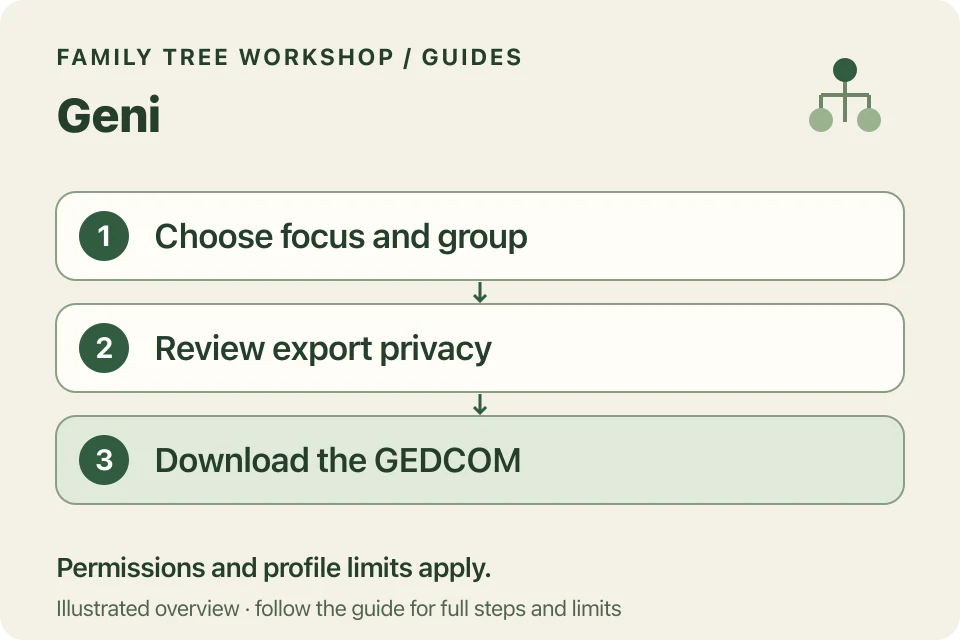
Choose the branch you want
- Sign in to Geni.
- Open Family → Share Your Tree → Export, or an eligible profile’s export action.
- Review the focus person and available relationship groups.
- Select the group, privacy options and standard GEDCOM 5.5.1 type.
- Request the export and retrieve the download link from Geni when ready.
Geni only allows exports from certain starting profiles. Being able to view a profile does not always mean you can export it.
Why might fewer profiles be included?
Geni documents contribution-based limits: Basic exports are limited to four times the number of profiles added, capped at 5,000. Pro has the same multiplier with a 50,000 cap. Check the current export screen for your account’s applicable limit.
The converter can only show people included in your download. If a branch is missing, check Geni’s export choices before increasing the chart’s generation setting.
How do the groups affect adoption?
Geni says Blood Relatives includes adopted relatives while DNA Relatives excludes them. Read these choices carefully. A missing adopted branch in an export is not evidence that the relationship never existed.
The converter uses the relationships in your file. It won’t add missing parents or restore a branch left out of the download.
Should private profiles be obscured?
Geni offers Obscure private profiles when exporting. Consider it before sharing: files can contain personal details that you are permitted to see but that are not public.
Open your file in the Workshop converter and check a small chart first. Its separate limits and conservative living-person masking still apply. A saved Workshop project contains the original imported genealogy, so keep it private.